How to use Lichess Broadcasts
The pages on Lichess that mainly track over-the-board chess tournaments at https://lichess.org/broadcast are called broadcasts.
Broadcasts show live games as they unfold, move by move, and are built to connect to live-updating PGN files produced by electronic chess boards or other sources.
Table of Contents
- How to make a broadcast official
- Creating a new broadcast
- Tournament settings
- Round settings
- The broadcast
- FAQ
How to make a broadcast official
Lichess may make broadcasts official, giving them extra perks. Compared to user broadcasts, official broadcasts will appear on the Broadcasts page for extra discovery, be updated with new moves more frequently, and receive active support from our team to ensure everything runs smoothly.
You can write to the Lichess Broadcast Team at broadcast@lichess.org and ask for your Lichess broadcast to be made official.
Our team can also create the broadcast for you. Please include the following in your email, if possible:
- Tournament information (name, location, format, time control, schedule)
- Live game source links, unless you use our Broadcaster App
- Standings website (chess-results, info64, vesus, or similar)
- Official tournament website
- Image that we're allowed to use with your permission, preferably in 2:1 format and at least 1000x500 pixels
- Required amount of delay per move
- You may also request a private undelayed broadcast (given at Lichess’ discretion) to gain the benefits of an official broadcast, for purposes such as live streams.
Creating a new broadcast
Head to https://lichess.org/broadcast/new, or Watch -> Broadcasts -> My broadcasts via the top bar menu and click the green New live broadcast button.

In order to better structure the broadcasts, they are divided into tournaments and rounds.
Tournament settings
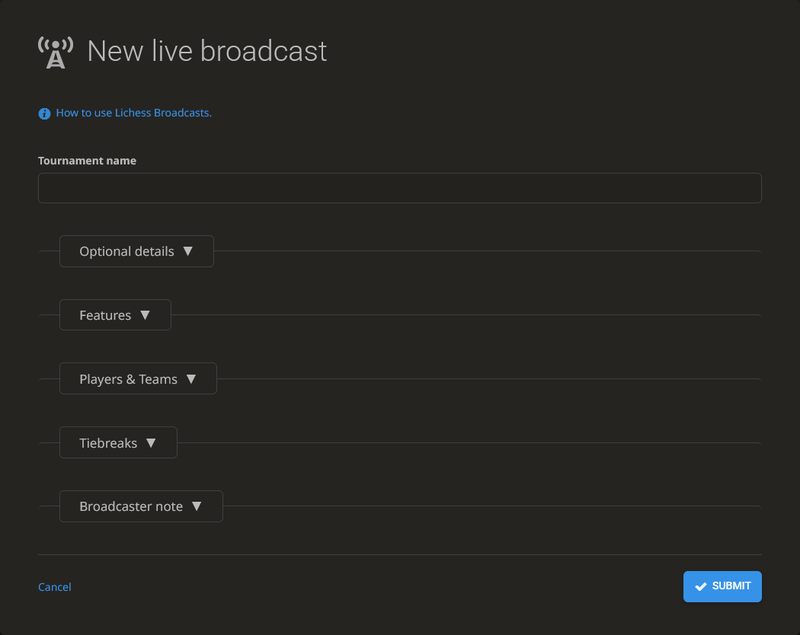
You will first be met with the following tournament form. The information you enter here will be used for all rounds of the event:
-
Enter the Tournament name
-
Expand the Optional details with short descriptions provided:
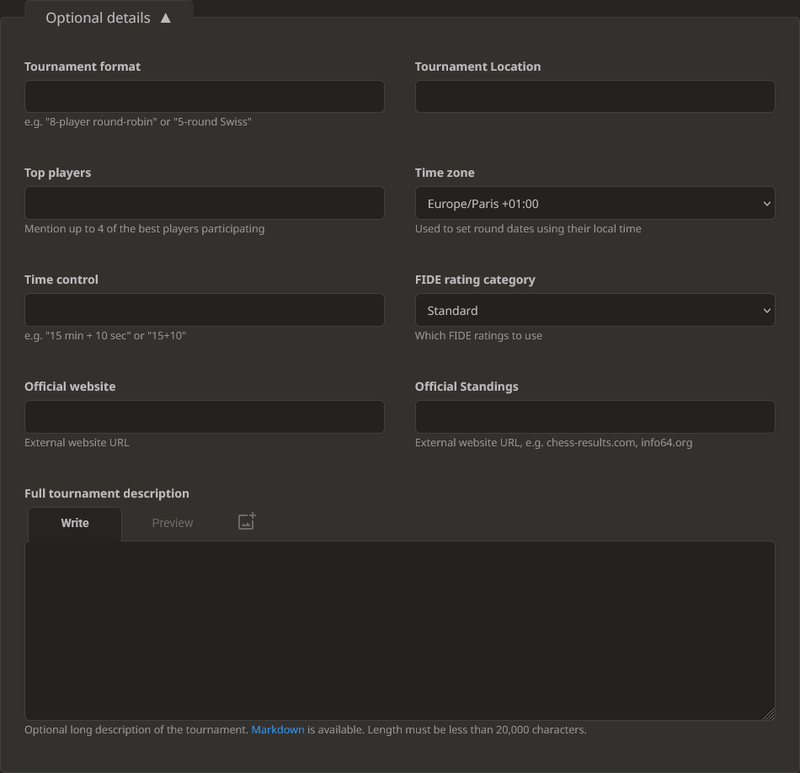
The Tournament format, Tournament Location, Top players, Time control, Official website, Official Standings, and Full tournament description are optional and will be displayed in the broadcast overview for other users to see.
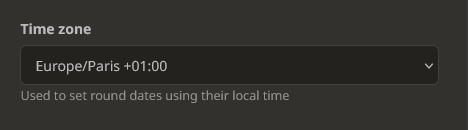
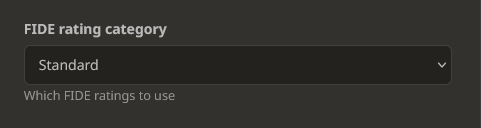
The Time zone and FIDE rating category are important for the broadcast to behave as expected:
-
Time zone, where the tournament is taking place: You can later enter the round start times in the local time zone of the tournament. The start times will then be automatically converted to each user’s time zone.
-
FIDE rating category of the tournament: The player ratings of this category will be used from our FIDE player database.
-
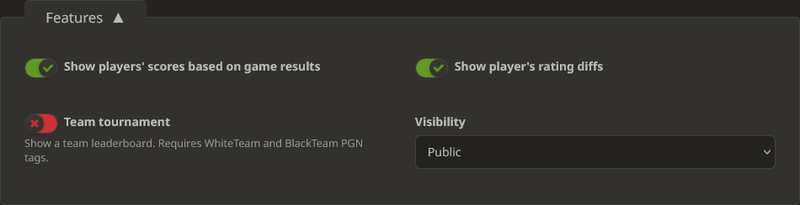
Expand the Features:
-
Show players' scores based on game results: Displays the player’s score and game results calculated from only the broadcast games across all rounds of this broadcast.
-
Show player's rating diffs: Displays the estimated rating change, again calculated only from the broadcast games across all rounds of this broadcast.
Note: Consider disabling these two features if not all games of the tournament will be broadcast, to avoid incorrect results being displayed.
-
Team tournament: Displays an additional team pairings tab and enables additional team features. Requires
WhiteTeamandBlackTeamtags in the PGN or manually assigning teams in the next section to work. -
Visibility: Set your broadcast to be Public, Unlisted (Available only from the broadcast link, will not be listed publicly anywhere) or Private (Visible only to users invited using the Members tab)
-
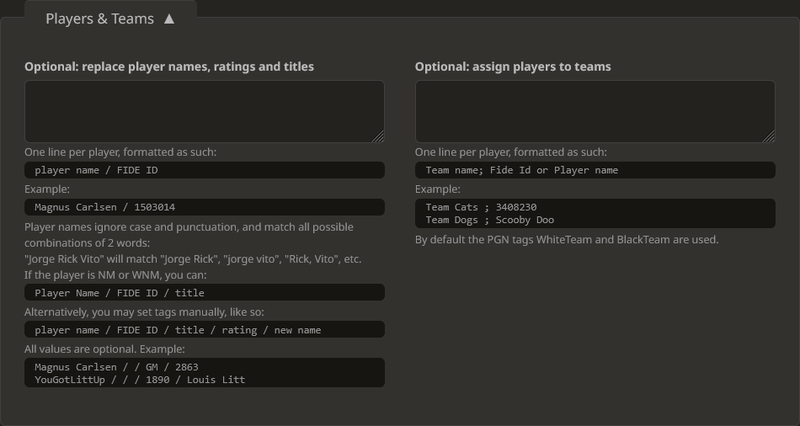
Expand the Players & Teams:
-
Replace player names, ratings and titles: Any entries here will override the existing name, rating, and title data of the matching player. Whenever possible, use the FIDE ID to reliably and automatically replace the data in the broadcast with the data from our FIDE player database.
-
Assign players to teams: If you are broadcasting a team event and the WhiteTeam and BlackTeam tags are missing in your game source, you can manually assign the players to their teams here. The teams will be displayed next to the player names in a game and also be used on the Teams page, if you have enabled the Team tournament feature. Feel free to reach out to our team at broadcast@lichess.org if you need help with this.
-
Expand the Tiebreaks:
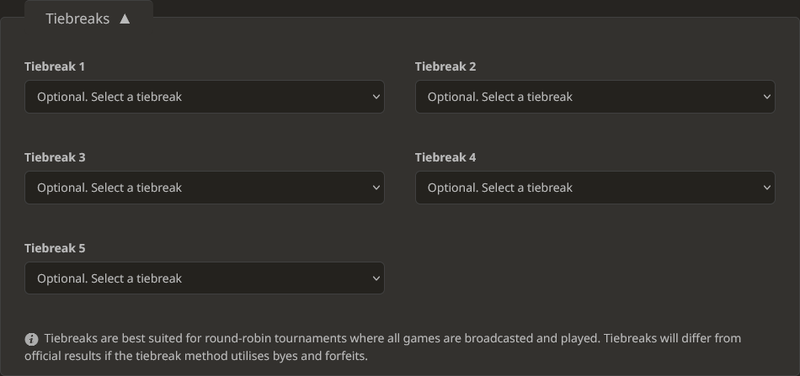
Optionally set up tiebreaks to be calculated and displayed in the Players tab of the broadcast, if applicable. Tiebreaks will not be calculated correctly if not all games are broadcast or played, or if the tiebreak method utilises byes and forfeits.
- Expand the Broadcaster note:
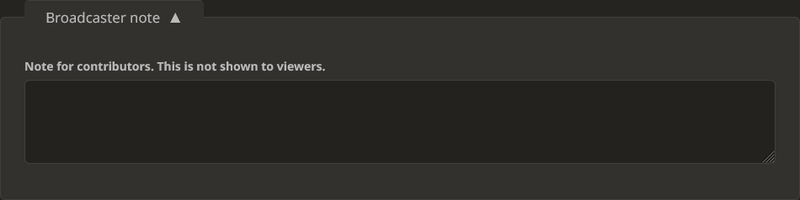
Add a note to the broadcast to only inform other broadcast contributors and members (it is not shown to all broadcast viewers).
- Click the Submit button and the broadcast will be created:

Round settings
Once you have submitted the tournament form, you will be taken to the following round form to create each individual round: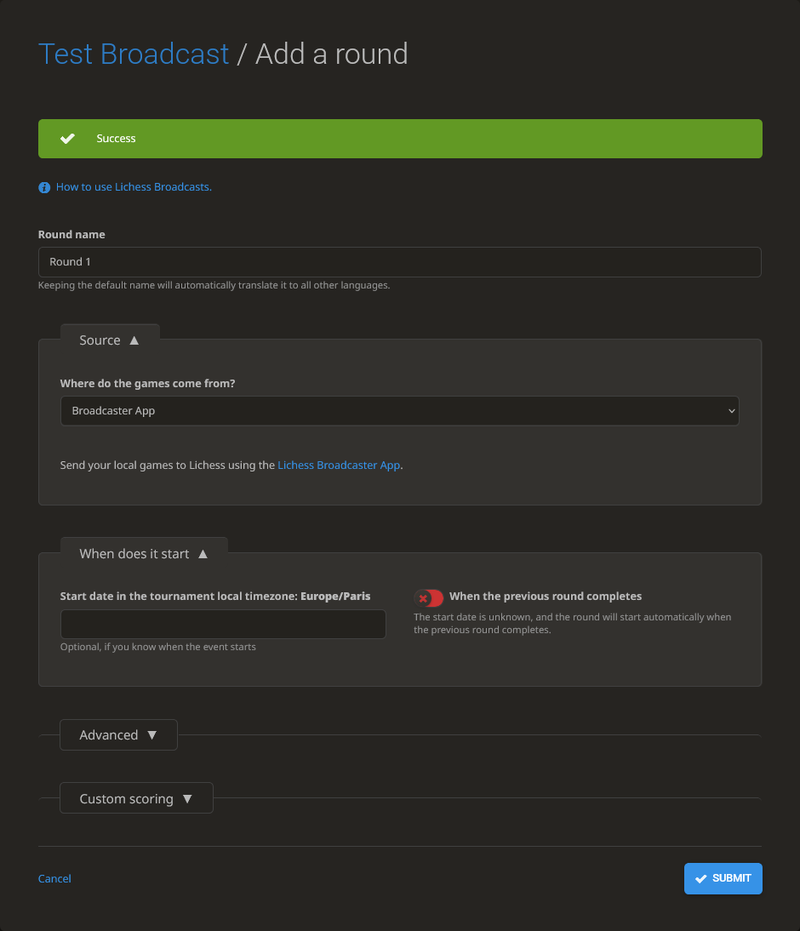
- Round name: This field is auto-filled, but you can change it to anything you need. Note that keeping it in the default “Round x” format allows it to be auto-translated to other languages.
- Source: The source of your games that will be used to load the games in the broadcast round.
- Click on the dropdown menu under Where do the games come from? to select the option that matches the origin of the source you want to use:

- Broadcaster App: We recommend our Broadcaster App if you have a LiveChessCloud source link, or have a local folder with PGN files but no solution to host them on your own servers.
- Single PGN URL: A game source link containing a PGN file.
- Combine several PGN URLs: Multiple game source links, each containing a PGN file, to be combined in the same broadcast round.
- Lichess game IDs: Individual games played on Lichess.
- Lichess usernames: Games played between specific Lichess users.
- Note: If you are using a LiveChessCloud link, you must add
/[RoundNumber]to the end of the link. After doing this for round 1, all consecutive rounds should auto-fill.
- Note: If you are using a LiveChessCloud link, you must add
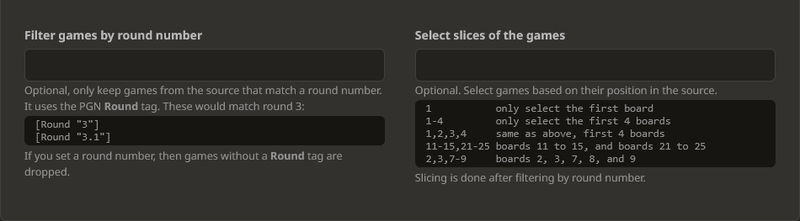
The following options are only available if you selected Single PGN URL or Combine several PGN URLs as your source:
-
Filter games by round number: If the source PGN contains games from multiple rounds and you only want to broadcast the games from one specific round.
-
Select slices of the games: If the source contains games from boards that you don't want to include in this broadcast round (for example, multiple tournament sections being combined in one PGN file and you want to split the file to have each section in its own broadcast).
-
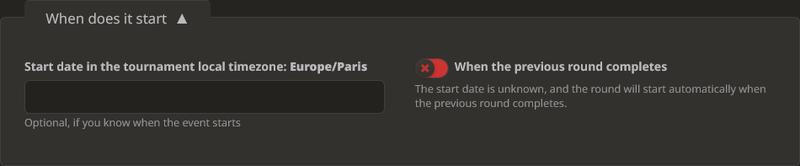
When does it start:
-
Start date in the tournament local timezone: The start date and start time of the round in the time zone that you previously selected in the tournament creation form.
-
If there is a broadcast delay, this start time should include the delay time. (e.g. if the round starts at 10:00 with a 15 minute delay, the start time should be set to 10:15)
-
This value auto-fills in new rounds based on the pattern between the previous 2 rounds.
-
Daylight saving time is automatically calculated using the timezone you selected.
-
When the previous round completes: If you don’t know the exact start time of the round, the source will connect after the previous round finishes, and the round will start when a game is detected within 3 hours (for example in Blitz tournaments without an exact schedule).
-
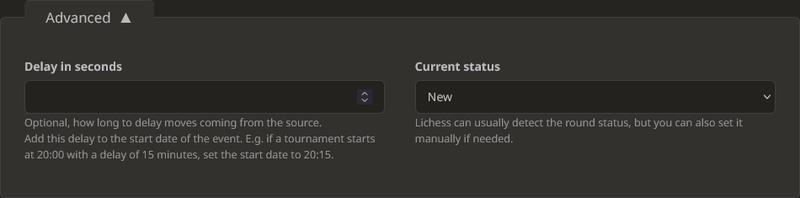
Expand the Advanced options:
-
Delay in seconds: Apply a delay for all incoming moves, before they appear in the broadcast round (in seconds), again note that you need to manually adjust the start time of the round accordingly. The maximum delay is 3600 seconds (60 minutes).
-
Current status: Change the status of the round manually (for example if a game in the source isn’t updated to finish correctly and the round is incorrectly shown as ongoing).
-
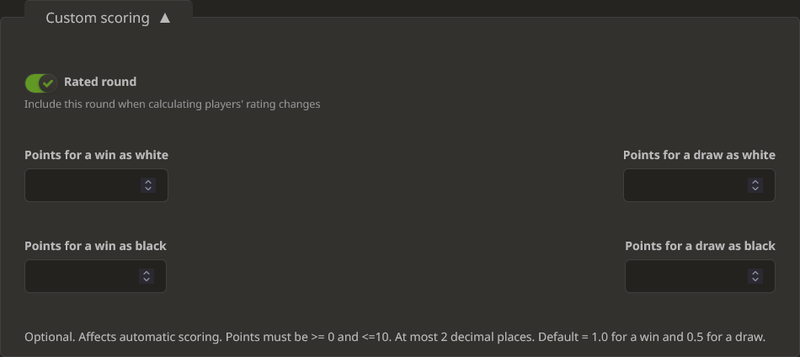
Expand the Custom Scoring options:
-
Rated Round: Disable this if the round should not be included in the overall players’ rating changes. Often used in tiebreak rounds.
-
Custom Scoring: Set a custom point value for a win or draw with white or black. The custom scores will be used for player standings.
-
Click the Submit button and the round will be added to the broadcast. You can come back at any time to change the settings.

-
To create more rounds, click on the Add a round button:
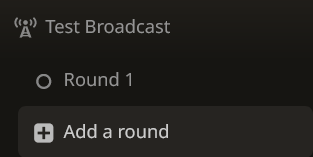
Here you can also quickly navigate between all the rounds of the broadcast or return to the tournament form by clicking on the tournament name of the broadcast above the first round.
The broadcast
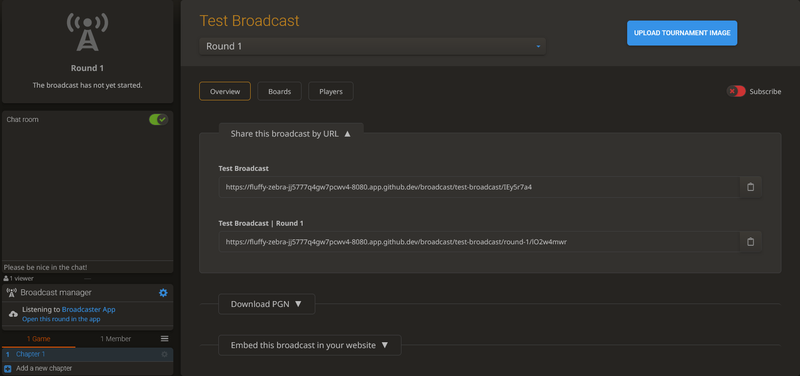
Once you have set up your rounds, you can go to the created broadcast by clicking on the round title or tournament title at the top of the current form.
- The broadcast page:
-
Click on the Upload tournament image button to upload a title image for the broadcast. This will take you back to the tournament settings, where you need to click on the Select image button. The image should be in 2:1 format (preferably at least 1000x500 pixels) and you should have the rights to use it.
-
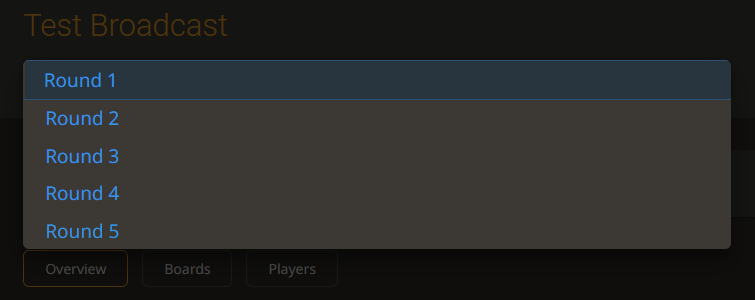
Open the Round selector dropdown menu by clicking on the round name to navigate between the different broadcast rounds and to view the broadcast schedule.
-
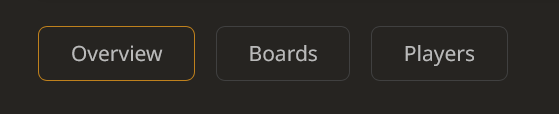
To navigate between the different pages of the broadcast, click on one of these buttons:
Your experience will be the same as a viewer, with some additional features:
- The Chat room is moderated by Lichess for official broadcasts, or the contributors for unofficial broadcasts
- You can find the Broadcast manager below the Games list and Chat window.
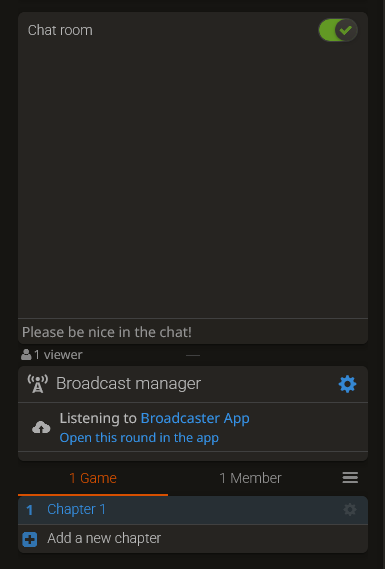
- Here you will see any updates or error messages related to the source that is used in the selected broadcast round.
- If you are not using our Broadcaster App, you will also see a blue Connect to source button:
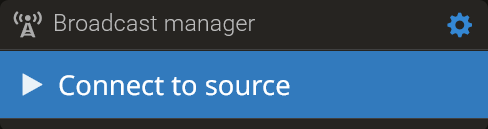
As soon as you click it, the button will turn green, indicating that the broadcast round is now requesting updates from the source that you entered. Click the button again to disconnect the source.
Note: You don't need to manually connect or disconnect the source by clicking the button. The broadcast automatically connects to the source 1 hour before the scheduled start time - plus the optionally applied delay - and disconnects automatically 3 hours after the last received update.
Additionally, you can click on the gear icon on the right to return to the round settings and also access the tournament settings from there.
- Below the Broadcast manager, you can see the Chapters & Members lists.
-
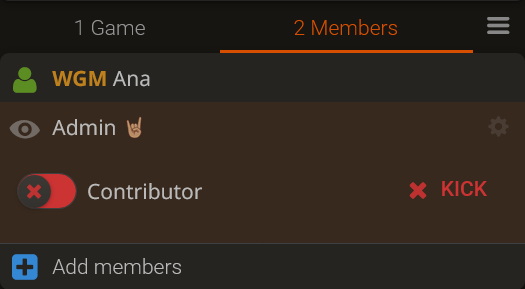
Click on the Members tab to see all contributors and members of the broadcast, and to add new contributors or members:
-
If you want to promote a member to a contributor and give them control over the broadcast settings and games, enable the Contributor toggle. From here you can also Kick a member or contributor out of the broadcast.
-
Click on the Games tab to see all game chapters of the current broadcast round. Here you can drag and drop the games to change the board order and click on the gear icon on the right to rename or delete a single game chapter.
-
Single-board view: Click on a board to open it in the single-board view.
-
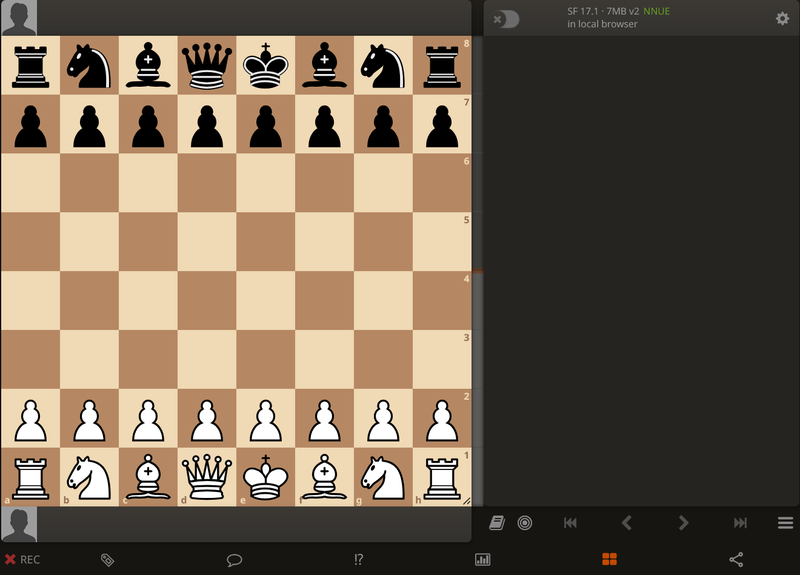
- Enable REC below the board on the left if you want to edit the PGN tags, or add or delete moves - but watch out to not accidentally enable it. To delete moves, right-click on a move in the game notation and then click on Delete from here. To add new moves, simply make them on the board.
- Select the bookmark icon to view the PGN tags of the game. If you have REC enabled, you can click in the fields and edit them manually or add a new tag via the dropdown selector at the bottom:
FAQ
Find answers to frequently asked questions:
- How to share a broadcast?
- How to add a delay to the games?
- How to group broadcasts?
- How to create a private broadcast?
- Why are boards or moves missing, although they are in the source?
- Why does a player have a different name, rating, title, or federation than in the source?
- Where can I find stats about the number of viewers?
- Can I disable the engine / Why is the engine disabled?
- Can I join the Lichess Broadcast Team?
- I have another question - where to get help?
How to share a broadcast?
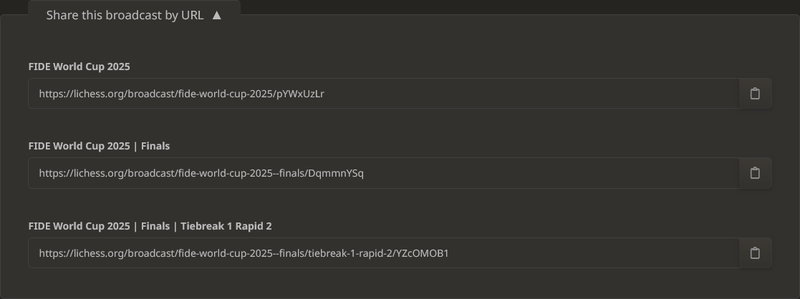
You have different options to share a broadcast with others. All of them are available on the broadcast overview page:
-
Broadcast Group URL: This link only exists if the tournament is grouped, providing a direct link to a page that displays all broadcasts in a group.
-
Broadcast URL: This link always redirects the user automatically to the current round and is usually the preferred link if you want to share a broadcast with others. Note that if you want to share this link, you need to copy it from the overview page - not from your browser address bar.
-
Broadcast Round URL: This link only leads to the round that you selected when you copied the link. Use it if you want others to open this specific round. This is the same as copying the link from your browser address bar for the currently selected round.
-
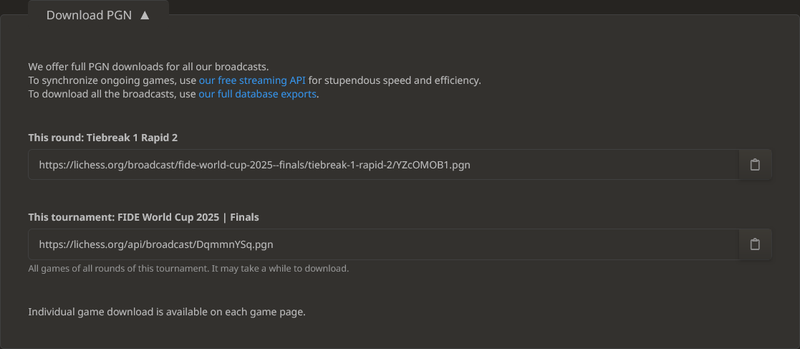
Broadcast Round PGN: This is the real-time PGN file of the Lichess broadcast round that everyone is free to use to stream the games on their own website. For even faster updates, we also offer a streaming API.
-
Broadcast Tournament PGN: The real-time PGN file of the Lichess broadcast for all games combined
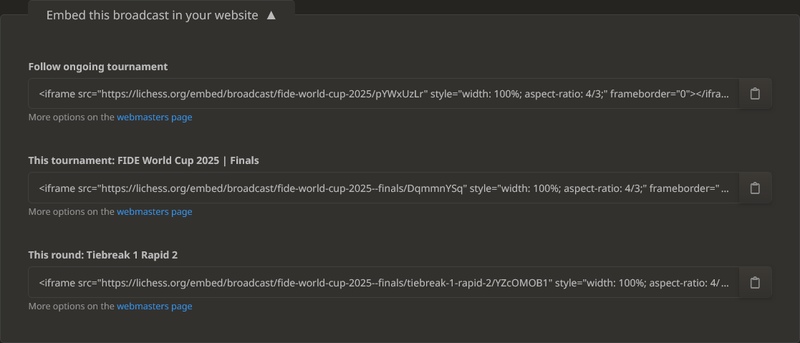
- Broadcast Embeds: Embed a broadcast on your website. See https://lichess.org/developers#broadcast for more information.
How to add a delay to the games?
A delay can be added under the Advanced options in the broadcast round settings. See the round settings section for more information.
How to group broadcasts?
Broadcasts can be grouped under the Grouping section in the tournament settings, after you have created the broadcasts.
- Expand the Grouping:
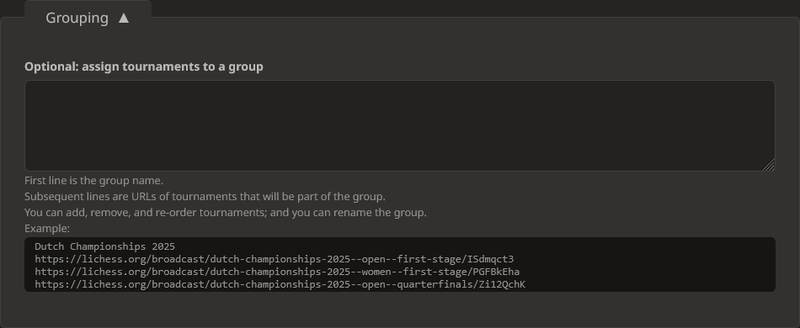
Groups must be created in the following format:
Tournament Name[Broadcast URL 1][Broadcast URL 2]...
All grouped broadcasts should begin with the same Tournament Name, which will be the name of the overall group and will be displayed in the Lichess broadcast page.
Everything after the Tournament Name in the broadcast title will be the name of each individual group. (e.g. Tournament Name: FIDE Grand Swiss 2025; Broadcast Names: FIDE Grand Swiss 2025 Open, FIDE Grand Swiss 2025 Women)
Grouped broadcasts that belong to the same event, can be accessed from a Group selector dropdown.
Note: Our team can clone broadcasts. Write to the Lichess Broadcast Team if your tournament has many groups with similar details that easily can be cloned, to prevent wasting time rewriting multiple broadcasts.
How to create a private broadcast?
Broadcasts can be set to “Private” (only visible to you and invited members) or “Unlisted” (available only from the broadcast link, will not be listed publicly anywhere) under the Features section of the tournament settings.
Why are boards or moves missing, although they are in the source?
This can have different reasons:
- All broadcasts have a limit of 100 games per round. Check if you have more than 100 games in your source. If so, you can slice the source and create a new broadcast for the rest of the games.
- Games without player names are ignored by our broadcasts. Check that all games in your source have player names. If not, add the player names to the source.
- If you applied a delay to the broadcast round, you need to wait for the amount of delay to elapse before the games in the broadcast are updated. Check if you applied a delay.
- Our broadcasts don't support moves that aren't legal according to the chess rules. Check if an illegal move is included in the source and remove it.
Why does a player have a different name, rating, title, or federation than in the source?
Check if the FIDE ID in the source is correct, this commonly happens when a wrong FIDE ID was entered in the source. Our broadcasts use the FIDE ID to automatically add the player name, rating, title, and federation. If there is no FIDE ID in the source, our broadcasts try to match the name of the player with an entry in our FIDE player database, but this only works if the match is unambiguous.
Where can I find stats about the number of viewers?
Broadcast viewer stats are available in official broadcasts. If you are a contributor to the broadcast, you can see them by clicking on the Stats button in the broadcast round. Otherwise, you can add #stats to the round URL of any official broadcast to access the stats.
Can I disable the engine / Why is the engine disabled?
By default, engine analysis is disabled in broadcasts that use Lichess games as the source. The engine cannot be disabled in official broadcasts, but it can be disabled for unofficial broadcasts through the option in the settings menu at the Chapters & Members list.
Can I join the Lichess Broadcast Team?
We are always looking for new volunteers. See our contributing page, if you want to join the team.
I have another question - where to get help?
Please email our Broadcast Team if your question wasn't answered here.